Showing posts with label master database. Show all posts

Monday, August 28, 2017

HELP! HELP! My system databases have disappeared revisited

Just over a week ago I was speaking at SQL Saturday #662 covering rebuilding system databases and as I was discussing moving system files back into their normal location, when not kept in the default location, I was asked if there was a way to do it during the rebuild process. One of the attendees suggested that maybe removing the /QUIET parameter would enable one to enter a path. I had not tried this so today I tested.

I tried first removing the /QUIET parameter. This doesn’t do anything more than allowing the following to pop-up on screen. Since this isn’t much help I think keeping the /QUIET parameter in place is fine…if you want to see this pop-up to know it is doing something that is up to you.

Next I did some reading on the Microsoft Docs site (https://docs.microsoft.com/en-us/sql/database-engine/install-windows/install-sql-server-2016-from-the-command-prompt) on installing SQL Server from command line, which also has the section on rebuilding system databases, and found the /INSTALLSQLDATADIR parameter in the installation section…it was not mentioned in the rebuilding system databases section. I added it into my code with the correct path and received an error.

Even though you cannot specify where the rebuild will create most of your system database files I did find that there are parameters you can use with the rebuild action to help you out with TempDB:

  • /SQLTEMPDBDIR
  • /SQLTEMPDBLOGDI
  • /SQLTEMPDBFILECOUNT
  • /SQLTEMPDBFILESIZE
  • /SQLTEMPDBFILEGROWTH
  • /SQLTEMPDBLOGFILESIZE
  • /SQLTEMPDBLOGFILEGROWTH

So at least you can put TempDB back in place right away…however once you restore master database those settings will be put back in place automatically.

There are two other parameters that may be of interest /INSTANCENAME which would be very useful when you need to restore the system databases for a named instance and /SQLCOLLATION which again would be useful when restoring a server that is not using the default.

Tuesday, January 10, 2017

HELP! HELP! My system databases have disappeared.

Disaster! The SAN array that hosts our system databases crashed. Now what do we do?

Fortunately, the array that hosted the C: drive where SQL Server was installed was intact as was our drives for the data files, transaction logs and backups. Here is how we got our server back up and running. First you will need to copy the ISO of the appropriate version and edition of SQL Server to your VM and mount it.

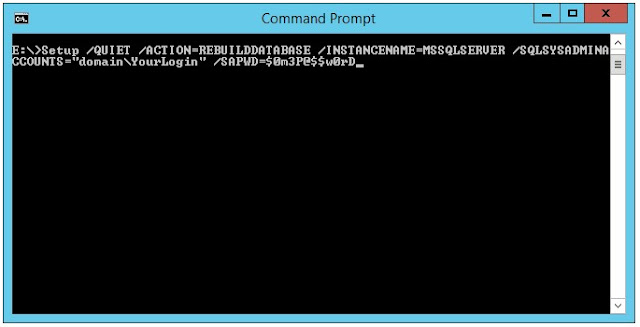
Next run command prompt as admin and execute the following script changing the drive letter, instance name if a named instance, Windows account to add with administrative access and password to fit your circumstances:

E:\>Setup /QUIET /ACTION=REBUILDDATABASE /INSTANCENAME=MSSQLSERVER /SQLSYSADMINACCOUNTS="domain\YourLogin" /SAPWD=$0m3P@$$w0rD

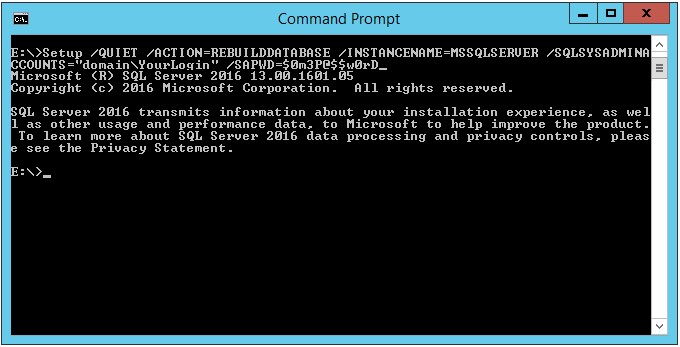
Once it finishes rebuilding the system databases it should look similar to the following.

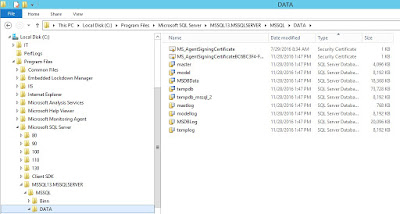
If you look in C:\Program Files\Microsoft SQL Server\...\MSSQL\Data you should now see system data files and transaction logs.

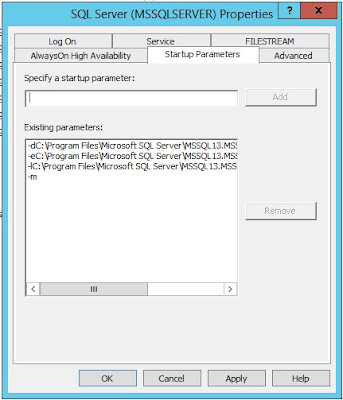
Go to SQL Server Configuration Manager and in the Startup Parameters add the -m flag to start SQL Server in single user mode.

Now in SQL Server Management Studio you can connect a query window, not object explorer, and use the following query to restore master database altering the query to fit your situation. You could also do this from SQLCMD if you prefer. Before running this you need to make sure that new drives with the same drive letters have been created for all system databases.

RESTORE DATABASE master FROM DISK = 'C:\IT\master_backup_2016_09_09_140813_6577087.bak' WITH REPLACE

Once the restore completes it will stop SQL Server. Remove the -m flag. You should also update the location for master database under Startup Parameters and copy the newly restored data and log files to the correct locations. You can now start SQL Server and reconnect SQL Server Management Studio and restore msdb; just be sure the SQL Agent service isn’t running. You can restore model and distribution if needed as well.

You should now be back in business.